Jetpcak composeでお絵描き
スマホやタブレットのアプリを製作していると手書きでサインや絵を描きたいといった要件がたまにあります。 今回はJetpack composeでお絵描きアプリの作成に挑戦してみました! 開発環境はAndroid Studio Giraffe(2022.3.1)を利用しています。
※この記事は2024/04/21時点の情報です。
MainActivity.kt
このコードは、Androidアプリケーション内でシンプルな描画ツールを実装しています。
Canvasを使用して描画領域を表示し、線を描画できるようにしています。ペンの色は選択可能で、削除することもできます。
画面上でドラッグすると、線が描画されます。ポイントは描画中の線をリストとして管理することで、画面上の複数の線を描画している点です。
この処理を実装しないと一筆書きのような状態になってしまい、上手くいきませんでした。
package com.example.drawtool

import android.os.Bundle
import androidx.activity.ComponentActivity
import androidx.activity.compose.setContent
import androidx.compose.foundation.layout.fillMaxSize
import androidx.compose.material3.MaterialTheme
import androidx.compose.material3.Surface
import androidx.compose.material3.Text
import androidx.compose.runtime.Composable
import androidx.compose.ui.Modifier
import com.example.drawtool.ui.theme.DrawToolTheme
import androidx.compose.foundation.Canvas
import androidx.compose.foundation.background
import androidx.compose.foundation.clickable
import androidx.compose.foundation.gestures.detectDragGestures
import androidx.compose.foundation.layout.Box
import androidx.compose.foundation.layout.Column
import androidx.compose.foundation.layout.padding
import androidx.compose.foundation.layout.size
import androidx.compose.material3.Button
import androidx.compose.runtime.*
import androidx.compose.ui.Alignment
import androidx.compose.ui.geometry.Offset
import androidx.compose.ui.graphics.Color
import androidx.compose.ui.input.pointer.pointerInput
import androidx.compose.ui.unit.dp
import androidx.compose.ui.window.Dialog

class MainActivity : ComponentActivity() {
    override fun onCreate(savedInstanceState: Bundle?) {
        super.onCreate(savedInstanceState)
        setContent {
            DrawToolTheme {
                Surface(
                    modifier = Modifier.fillMaxSize(),
                    color = MaterialTheme.colorScheme.background
                ) {
                    DrawingBoard()
                }
            }
        }
    }
}

@Composable
fun DrawingBoard() {
    var lines by remember { mutableStateOf<List<List<Offset>>>(emptyList()) }
    var currentLine by remember { mutableStateOf<List<Offset>>(emptyList()) }
    var penColors by remember { mutableStateOf<List<Color>>(emptyList()) }
    var currentPenColor by remember { mutableStateOf(Color.Black) }

    Box(modifier = Modifier.fillMaxSize()) {
        Canvas(
            modifier = Modifier
                .fillMaxSize()
                .pointerInput(Unit) {
                    detectDragGestures(
                        onDragStart = {
                            currentLine = emptyList()
                            penColors = penColors + currentPenColor
                        },
                        onDrag = { change, dragAmount ->
                            val newPoint = change.position
                            currentLine = currentLine + newPoint
                        },
                        onDragEnd = {
                            lines = lines + listOf(currentLine)
                            currentLine = emptyList()
                        }
                    )
                }
        ) {
            lines.forEachIndexed { index, line ->
                val color = if (index < penColors.size) penColors[index] else Color.Black
                drawPoints(
                    points = line,
                    pointMode = androidx.compose.ui.graphics.PointMode.Polygon,
                    color = color,
                    strokeWidth = 5f
                )
            }
            drawPoints(
                points = currentLine,
                pointMode = androidx.compose.ui.graphics.PointMode.Polygon,
                color = currentPenColor,
                strokeWidth = 5f
            )
        }

        DeleteButton(
            modifier = Modifier
                .size(100.dp)
                .align(Alignment.BottomEnd)
                .padding(16.dp)
        ) {
            lines = emptyList()
            penColors = emptyList()
        }

        ColorPickerButton(
            modifier = Modifier
                .size(100.dp)
                .align(Alignment.BottomStart)
                .padding(16.dp),
            onColorSelected = { color ->
                currentPenColor = color
            }
        )
    }
}

@Composable
fun DeleteButton(modifier: Modifier = Modifier, onDelete: () -> Unit) {
    Button(
        modifier = modifier,
        onClick = onDelete
    ) {
        Text("消")
    }
}

@Composable
fun ColorPickerButton(modifier: Modifier = Modifier, onColorSelected: (Color) -> Unit) {
    var selectedColor by remember { mutableStateOf(Color.Black) }
    var showDialog by remember { mutableStateOf(false) }

    if (showDialog) {
        LaunchedEffect(Unit) {
            selectedColor = Color.Black
        }
        Dialog(onDismissRequest = { showDialog = false }) {
            Column(
                modifier = Modifier.padding(16.dp),
                horizontalAlignment = Alignment.CenterHorizontally
            ) {
                listOf(Color.Black, Color.Red, Color.Green, Color.Blue, Color.Yellow, Color.Cyan, Color.Magenta).forEach { color ->
                    Box(
                        modifier = Modifier
                            .size(50.dp)
                            .background(color)
                            .clickable {
                                selectedColor = color
                                onColorSelected(selectedColor)
                                showDialog = false
                            }
                    )
                }
            }
        }
    }

    Button(
        modifier = modifier,
        onClick = { showDialog = true }
    ) {
        Text("色")
    }
}
処理結果は次の通りです。
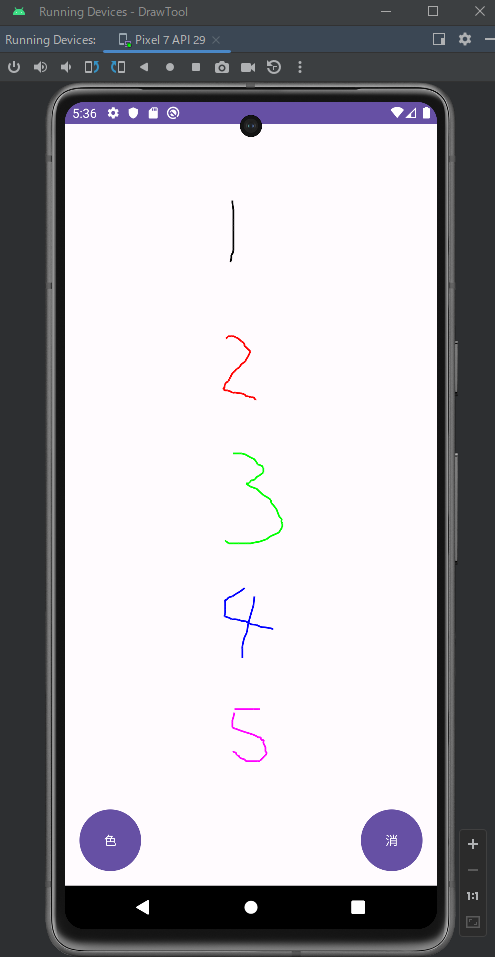
今回は必要最低限のシンプルな機能しか実装されていませんが、 消しゴムやペンのサイズ変更などの機能を実装できれば、より手書きツールらしくなると思います。 興味がある人は是非挑戦してみてくださいね!
さて、Jetpack composeでお絵描き機能を実装するイメージができましたか?
よく分からないという人は実際にプログラムを実行して動きを追ってみてください。 今回のお絵描きアプリのように直感的に操作できるものはデバッグしていても何か楽しく感じますので、頑張って勉強しましょうね!